Why Is Your 100W Power Bank Charging a Laptop Slowly? 7 Possible Reasons
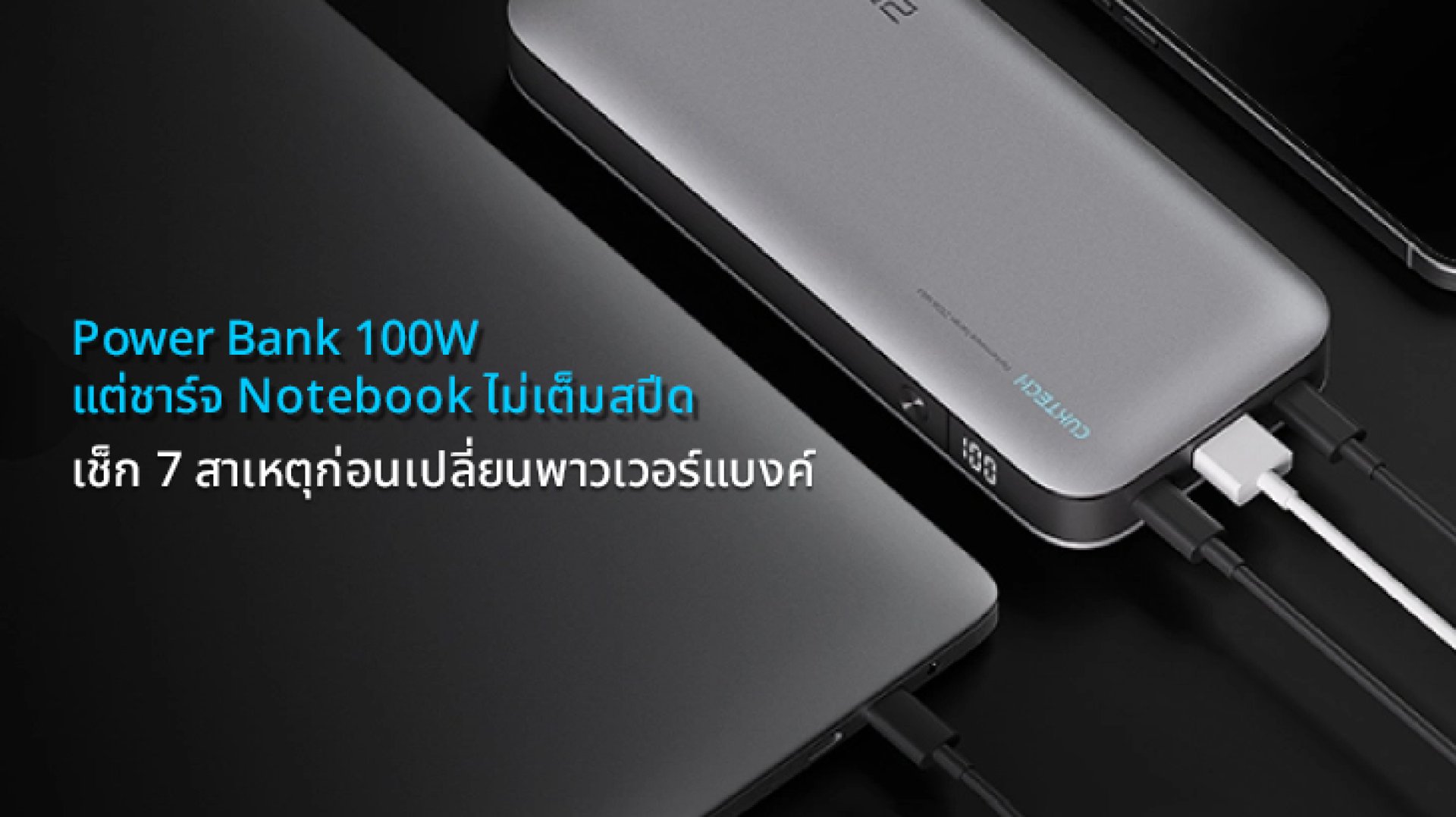
A power bank rated at 100W sounds powerful enough to charge a laptop quickly. However, you may find that your laptop charges much more slowly than expected, even when the power bank and cable both claim to support 100W.
The reason is that a 100W power rating does not guarantee that your laptop will receive 100W continuously. Actual charging speed depends on the laptop's power requirements, USB Power Delivery (USB-PD) compatibility, the cable, the power bank's output configuration, and the laptop's operating conditions.
Before replacing your power bank, check these seven possible causes to understand what is limiting your charging speed.
1. Your Laptop Does Not Support 100W USB-C Charging
Not every laptop with a USB-C port supports charging through that port. Some USB-C ports are designed primarily for data transfer or display output, while others support USB Power Delivery charging.
Even when a laptop supports USB-C charging, its maximum input power may be lower than 100W or may vary by model.
For example, if your laptop supports a maximum USB-C charging input of 65W, a 100W power bank will not automatically make it charge at 100W.
How to check:
- Look up your exact laptop model's charging specifications.
- Confirm that the USB-C port supports power input and USB-PD charging.
- Check the manufacturer's recommended charger wattage.
- Verify whether your laptop requires a particular charging port.
The first step is to establish the laptop's actual power requirements instead of relying on the wattage printed on the power bank.
2. The Power Bank Does Not Support the Required USB-PD Power Profile
USB Power Delivery allows compatible power sources and devices to negotiate voltage and current. However, having a USB-PD label does not mean every charger, power bank, and laptop supports every available power profile.
For example, a laptop may require a particular voltage and current combination to reach its expected charging rate. If the power bank cannot provide a compatible profile, the laptop may negotiate a lower power level.
This is why two power banks with the same maximum wattage can deliver different charging results with the same laptop.
How to check:
- Review the power bank's detailed USB-C output specifications.
- Compare its supported voltage and current combinations with the laptop's requirements.
- Confirm that the power bank supports USB-PD at the required power level.
For more technical background, read the USB Implementers Forum's USB Power Delivery overview.
3. Your USB-C Cable May Be Limiting the Power
A high-output power bank needs a suitable cable to deliver its supported charging power. A cable that supports only lower current levels may prevent the charging setup from reaching its intended output.
For high-power USB-PD charging above 3A, an appropriately electronically marked cable, commonly called an E-Marker cable, is generally required. The cable must also meet the relevant specifications for its intended power rating.
Do not assume that every USB-C cable supports 100W simply because its connectors fit your laptop and power bank.
How to check:
- Use a reputable USB-C to USB-C cable rated for the required power.
- Check the cable's specifications rather than relying on connector type alone.
- Test with another known-good, compatible high-power cable.
- Inspect the cable and connectors for damage or loose connections.
Learn more about USB-C cable and connector specifications from USB-IF.
4. The Power Bank's 100W Output May Apply to Only One Port
Some power banks advertise a maximum output of 100W, but that figure may apply only when one particular USB-C port is used on its own.
When you charge a laptop and a phone simultaneously, the power bank may distribute its available power across multiple ports. The laptop may then receive less power than it would when connected alone.
For example, a power bank rated for up to 100W may provide a lower output to the laptop when another device is connected. The exact power allocation depends on the model.
How to check:
- Read the output specifications for each individual port.
- Check the maximum output when multiple ports are in use.
- Disconnect other devices and test the laptop by itself.
- Use the port specified for high-power laptop charging, if the manufacturer identifies one.
This is one of the simplest checks because it does not require changing the laptop or buying another accessory.
5. Your Laptop Is Using More Power Than the Power Bank Can Supply
A laptop does not use the same amount of power in every situation. Its power consumption can rise when running demanding applications, editing video, rendering 3D graphics, or playing games.
If the laptop consumes nearly as much power as the power bank supplies, only a small amount may remain available to charge the battery. In some situations, the battery percentage may increase very slowly or may not increase while the laptop is under heavy load.
Consider this simplified example:
| Situation | Possible result |
|---|---|
| Laptop is asleep or idle | More of the available power may go toward charging the battery |
| Laptop is used for everyday tasks | Charging speed depends on the workload and available input power |
| Laptop is running demanding applications | More power is consumed by the system, leaving less available for battery charging |
These are general examples, not guaranteed wattage measurements. Actual results vary by laptop model and workload.
How to check:
- Temporarily close demanding applications.
- Put the laptop to sleep and observe whether charging improves.
- Compare charging performance when the laptop is idle and under load.
6. The Laptop May Reduce Charging Speed Because of Heat or Battery Management
Charging speed is not constant throughout the battery cycle. A laptop may reduce charging power when the battery is nearly full, when the system becomes too hot, or when its battery management settings limit charging.
Some laptops also have battery health features that pause charging at a preset level, such as 80%, depending on the selected settings.
These behaviors do not necessarily indicate that the power bank is faulty.
How to check:
- Allow the laptop to cool down if it becomes unusually warm.
- Check the operating system's battery status and charging notifications.
- Review any battery charge limit or battery health settings.
- Test charging again when the laptop is cool and under a light workload.
For MacBook users, Apple provides guidance on recommended charger wattage and how to check the power delivered to a Mac in its Mac laptop charging support guide.
7. The Power Bank's Remaining Battery or Operating Conditions May Affect Performance
A power bank's advertised maximum output describes its supported capability under specified conditions. Actual performance can depend on the product's design, temperature, battery state, and built-in power management.
If charging performance changes as the power bank's remaining battery decreases, check the manufacturer's documentation to determine whether its output behavior varies with battery level.
Also check whether the power bank is unusually hot or displaying a warning. Do not continue using a power bank that appears swollen, damaged, or abnormally hot.
How to check:
- Recharge the power bank according to the manufacturer's instructions.
- Allow it to cool if it becomes unusually warm.
- Test the laptop with the power bank's other connected devices disconnected.
- Check the manufacturer's stated output conditions and troubleshooting guidance.
100W vs. 140W vs. 240W Power Banks: Which Is Better for a Laptop?
A higher wattage rating can be useful when a compatible laptop needs more input power. However, choosing a power bank with a higher number does not guarantee faster charging. The laptop, power bank, and cable must all support a compatible power configuration.
| Power Rating | What to Consider |
|---|---|
| 100W | May suit compatible laptops that support charging at up to 100W through USB-PD |
| 140W | Can support compatible higher-power charging configurations, including USB-PD 3.1 EPR at 28V and 5A |
| 240W | Supports compatible USB-PD 3.1 EPR configurations up to 48V and 5A, where the power source, cable, and device support them |
These ratings describe maximum supported power capabilities, not guaranteed charging speeds. The actual output depends on the specific product and the power profile negotiated with the connected device.
For a broader comparison, see our guide: Power Bank 100W vs. 140W vs. 240W: What's the Difference?
Quick Checklist: Fixing Slow Laptop Charging with a 100W Power Bank
- Confirm that your laptop supports USB-C charging.
- Check the laptop's recommended charger wattage and supported USB-PD profiles.
- Use a compatible USB-C cable rated for the required power.
- Connect the laptop to the power bank's appropriate high-output port.
- Disconnect other devices to check for power sharing.
- Reduce the laptop's workload and check its temperature.
- Review battery charge limits and power bank output specifications.
Frequently Asked Questions (FAQ)
Why does my 100W power bank charge my laptop slowly?
The laptop may not support 100W USB-C charging, the power bank may not support the required USB-PD profile, or the cable, port, workload, temperature, or power-sharing behavior may limit charging speed.
Can a 100W power bank charge a laptop that normally uses a 65W charger?
It can, provided the laptop supports charging from that USB-C port and the power bank and cable offer a compatible USB-PD configuration. The laptop will draw power according to its own requirements and charging controls.
Will a 240W USB-C cable make my laptop charge faster?
Not automatically. A higher-rated cable can support higher-power configurations, but charging speed is still limited by the power bank's output and the laptop's supported charging capabilities.
Why does my laptop charge faster when it is asleep?
When the laptop is asleep, it generally consumes less power. More of the available input power may therefore be available to charge the battery.
Why does my power bank charge my laptop slowly when I charge my phone at the same time?
The power bank may divide its available output between the connected devices. Check its multi-port output specifications and test the laptop with the phone disconnected.
References
- USB Implementers Forum (USB-IF): USB Power Delivery
- USB Implementers Forum (USB-IF): Cables and Connectors
- Apple Support: Charge your Mac laptop computer
- Apple Support: Use a power adapter with your Mac
Explore more charging guides and compatible accessories at ZMI Thailand.